


An IDE built around the agent, not beside it
Claude Code, Codex and Qwen run inside the window, on your machine — with your files, your terminal, your git and your own keys. Beside them, a canvas where you wire the workflows they can call.
The editor
It is an IDE.
It just knows what your workflows are.
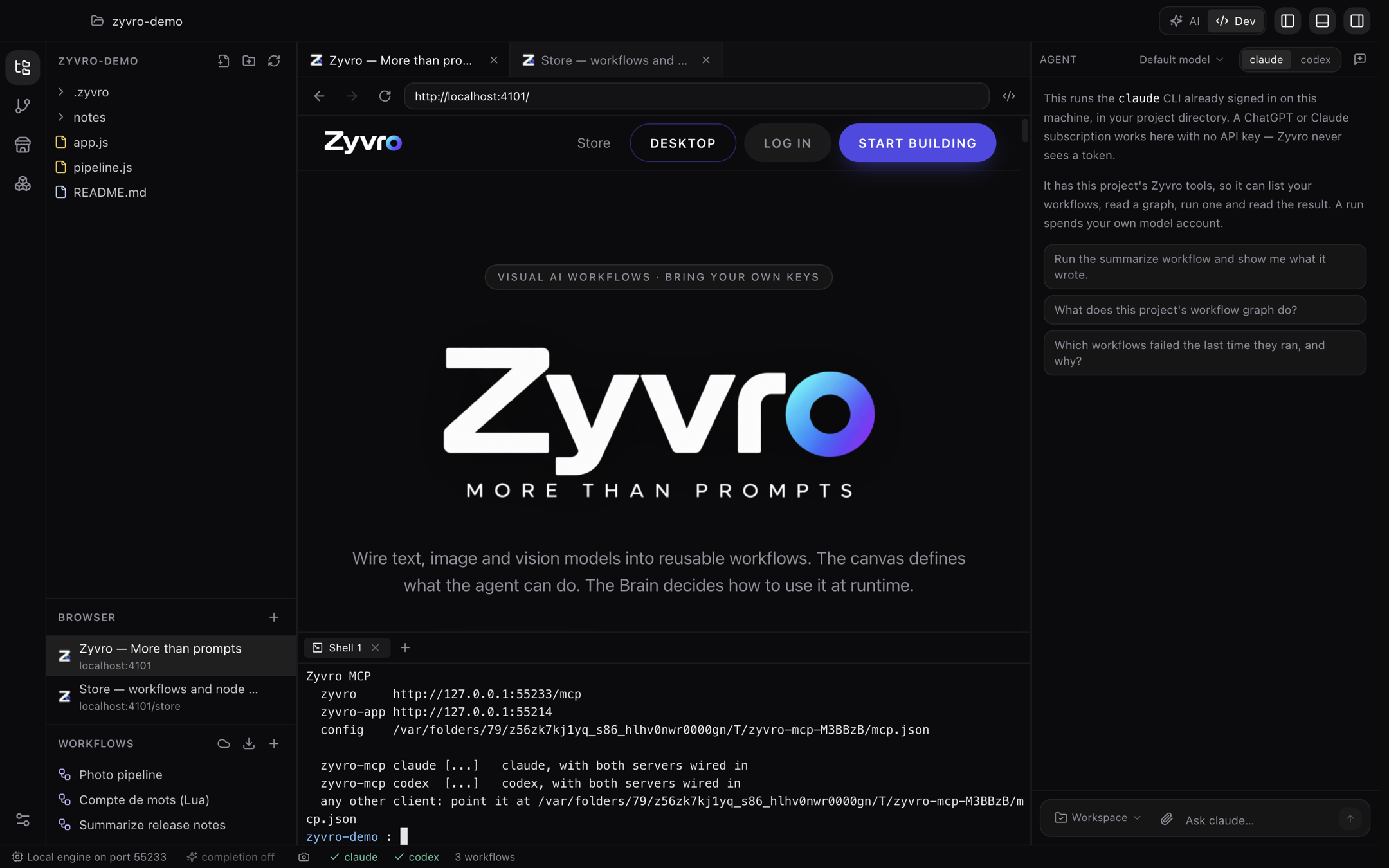
Your files, a real shell, git, and the canvas in the same window. One switch changes who the window is for: write the code yourself, or ask for it. Nothing else moves — the same project, the same workflows, the same models.
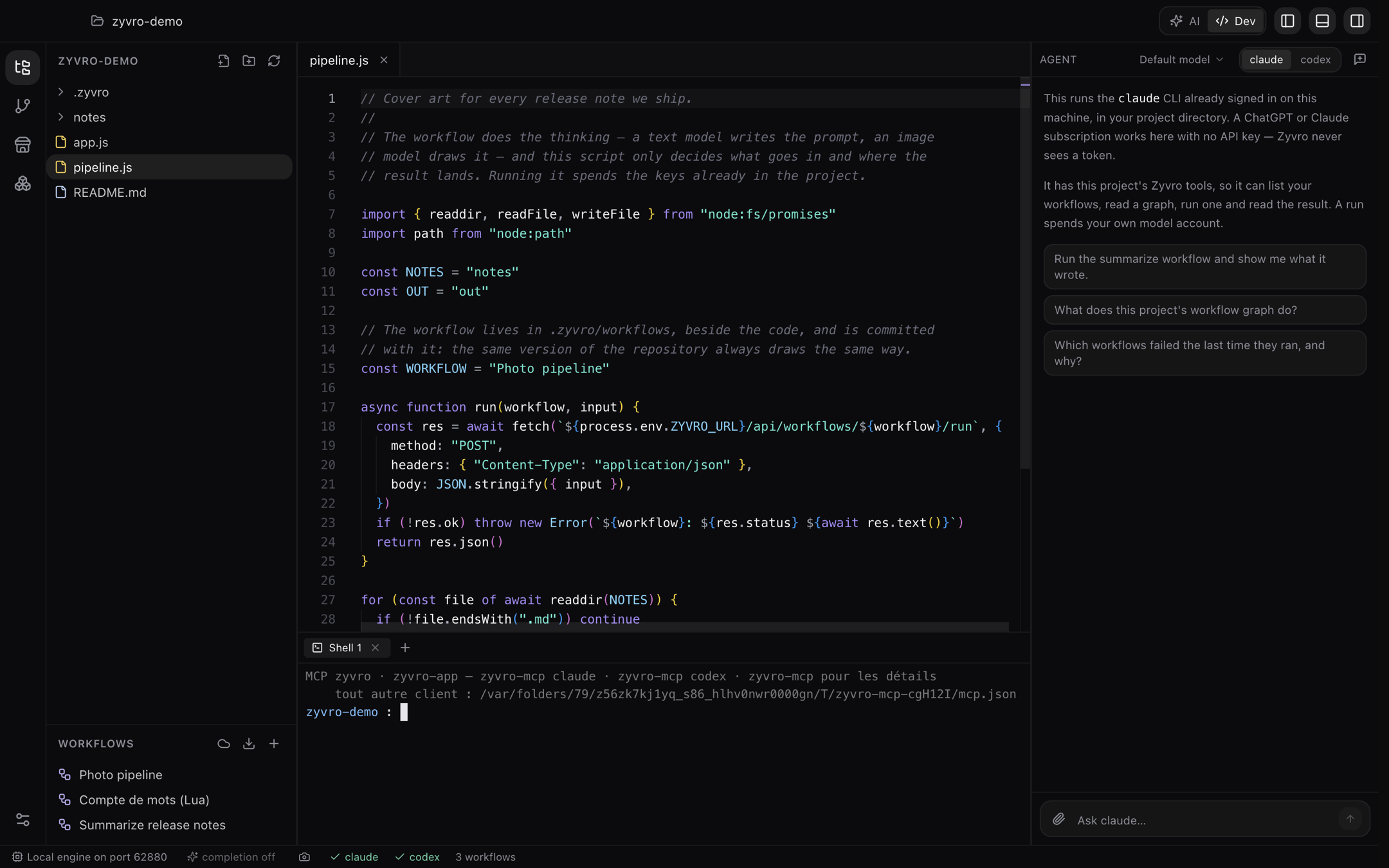
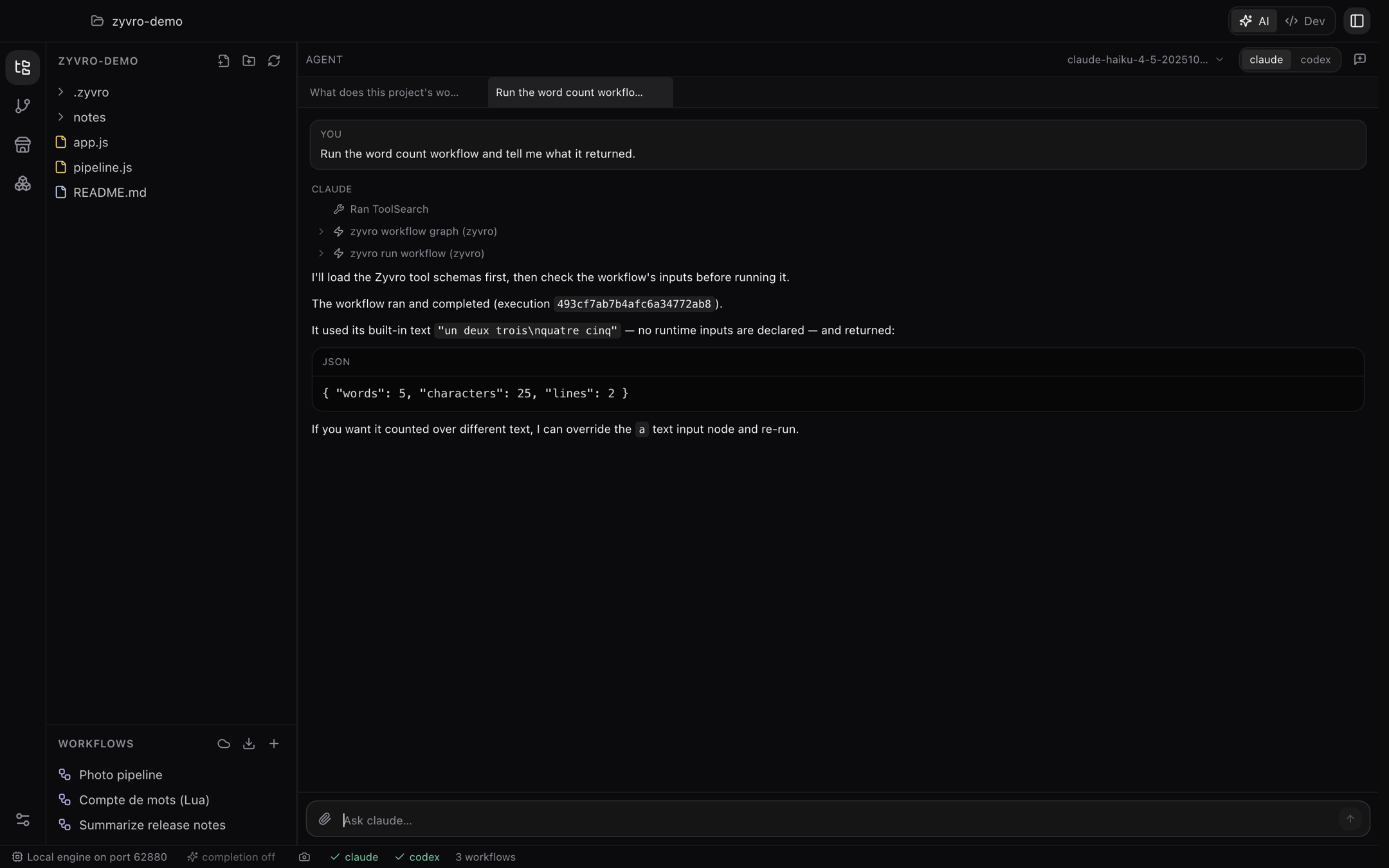
Editor, shell underneath, agent beside.
The canvas
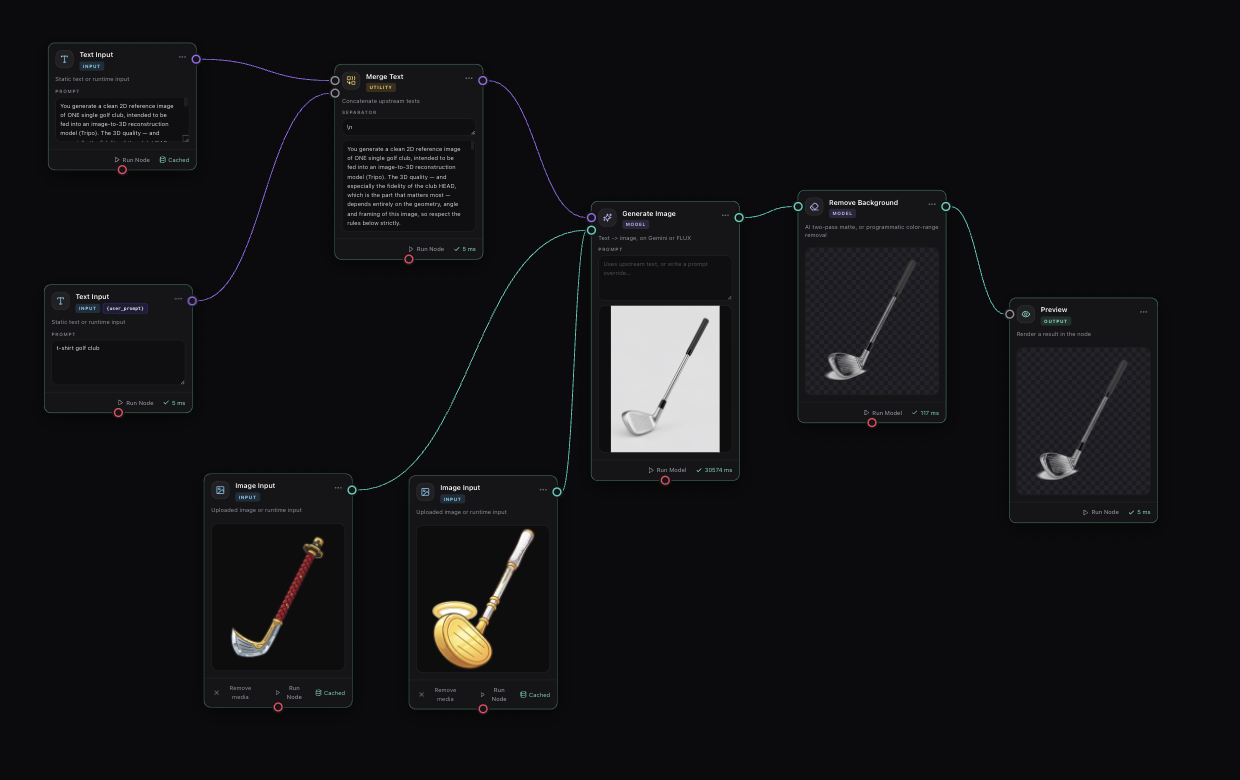
Wire the models together.
Run it as many times as you like.
Text, image and vision models on one canvas, each node carrying what it produced. A workflow is a file in your project — it runs from here, from the chat, from an API call, or from an agent.
Your own models
Nothing has to leave your machine.
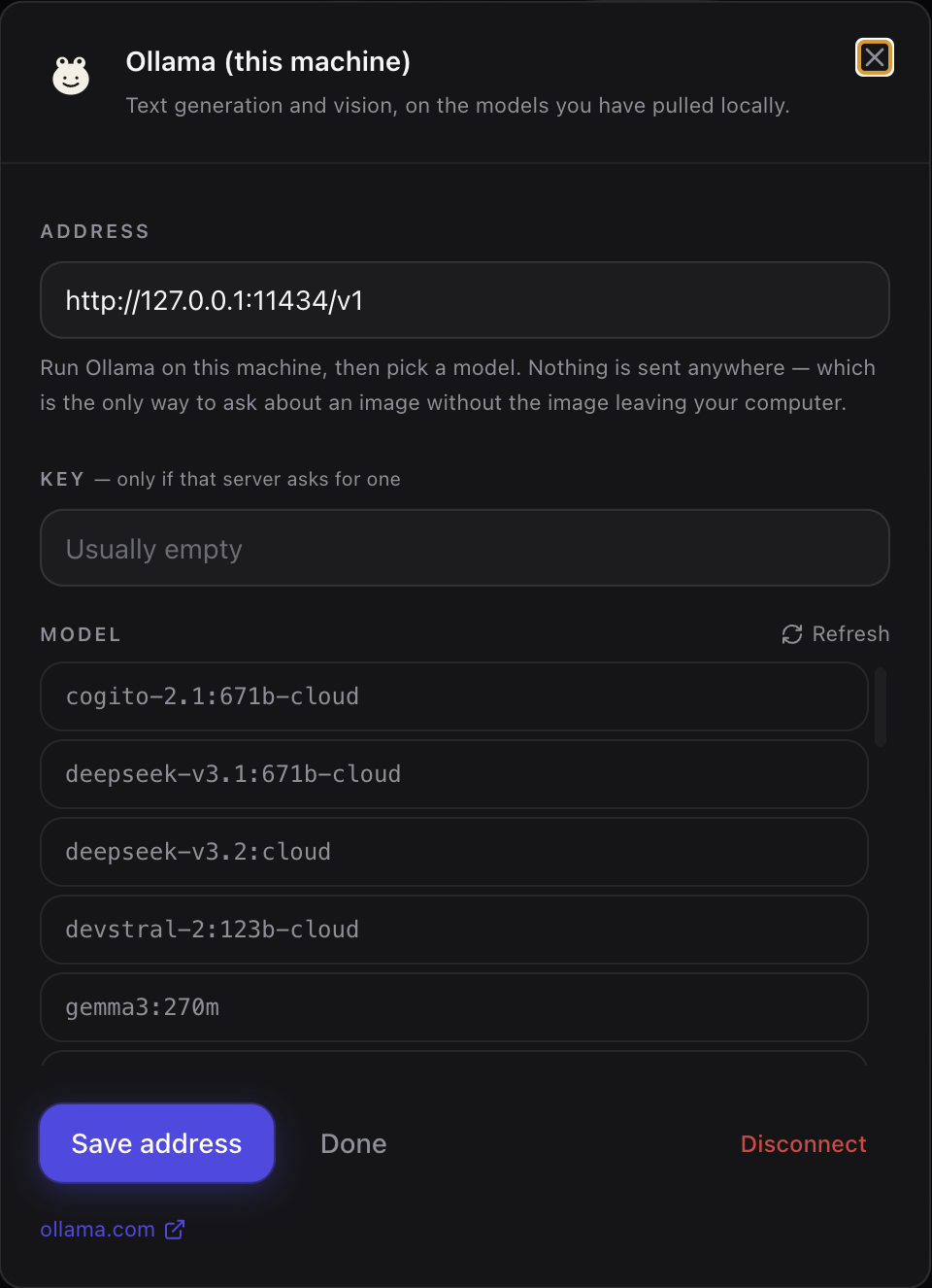
Ollama on this computer, LM Studio, or any server speaking the OpenAI API — an address and a model, no key to paste. The list of models comes from the server itself, because what is installed is your business. It is also the only way to ask a question about an image without the image going anywhere.
The agent
Your subscription, not another bill.
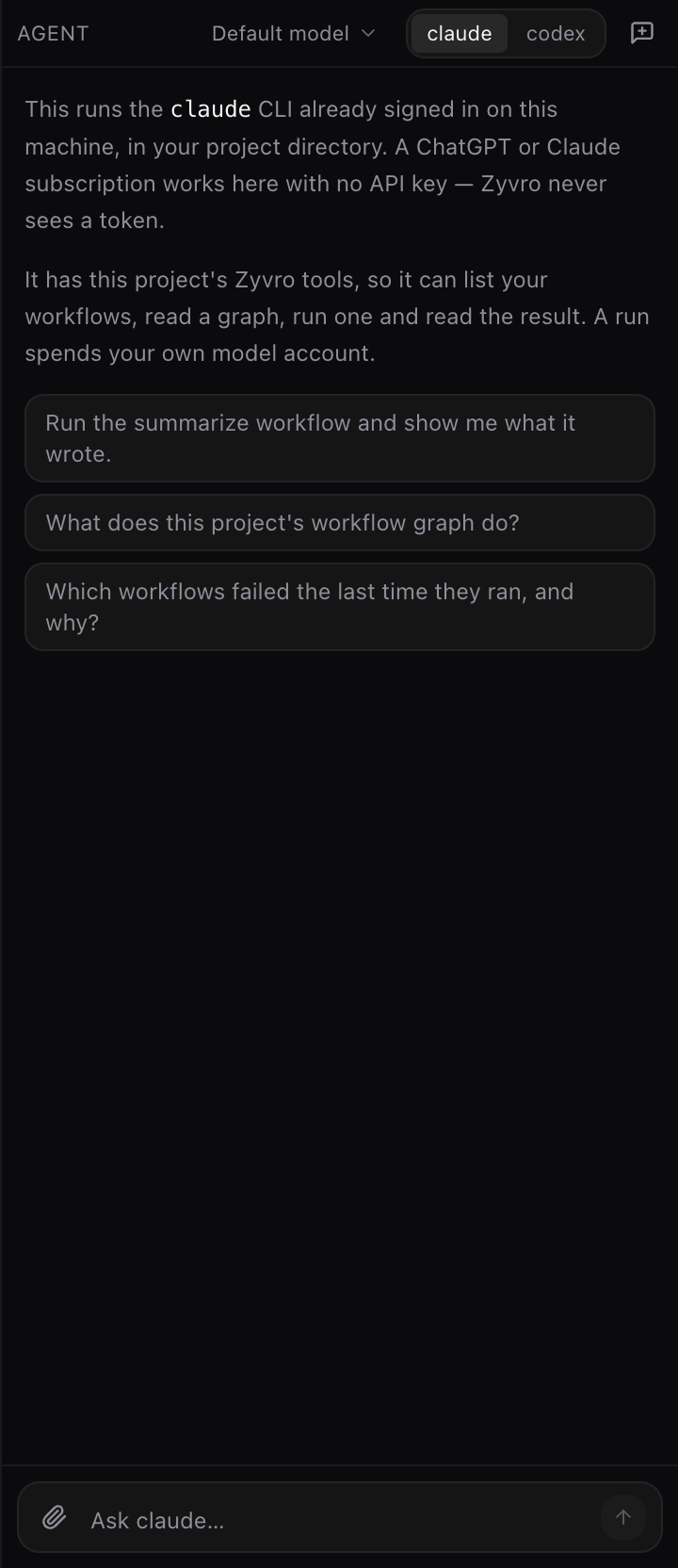
The panel runs the claude or codex CLI already signed in on your machine, in your project folder. A ChatGPT or Claude subscription drives a workflow with no API key — Zyvro never sees a token. It holds this project's tools, so it can list your workflows, read a graph, run one and read what came back.
Permissions
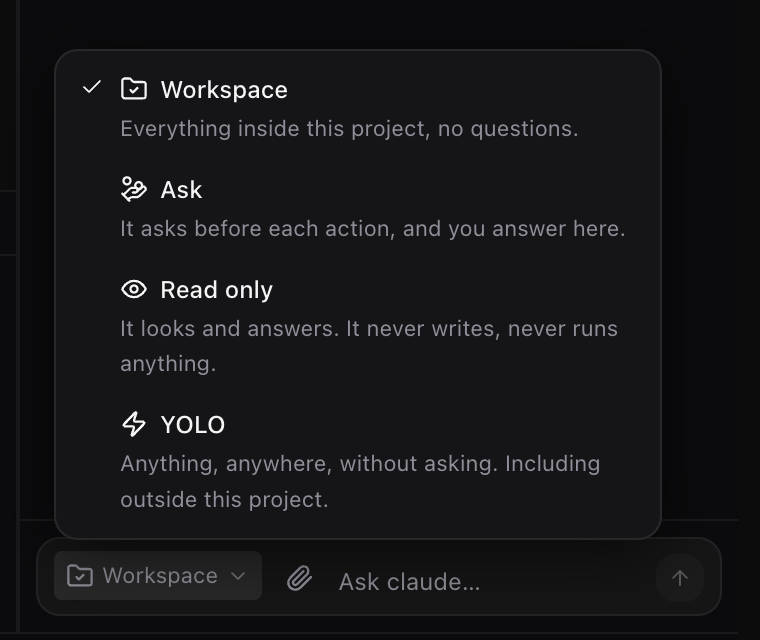
You decide what it may do.
Per conversation, next to what you are about to ask. Workspace, and it works in the project without asking. Ask, and every action arrives with its command or its path, to allow or deny. Read only, and it looks without touching. YOLO, if you mean it.
Agent tools
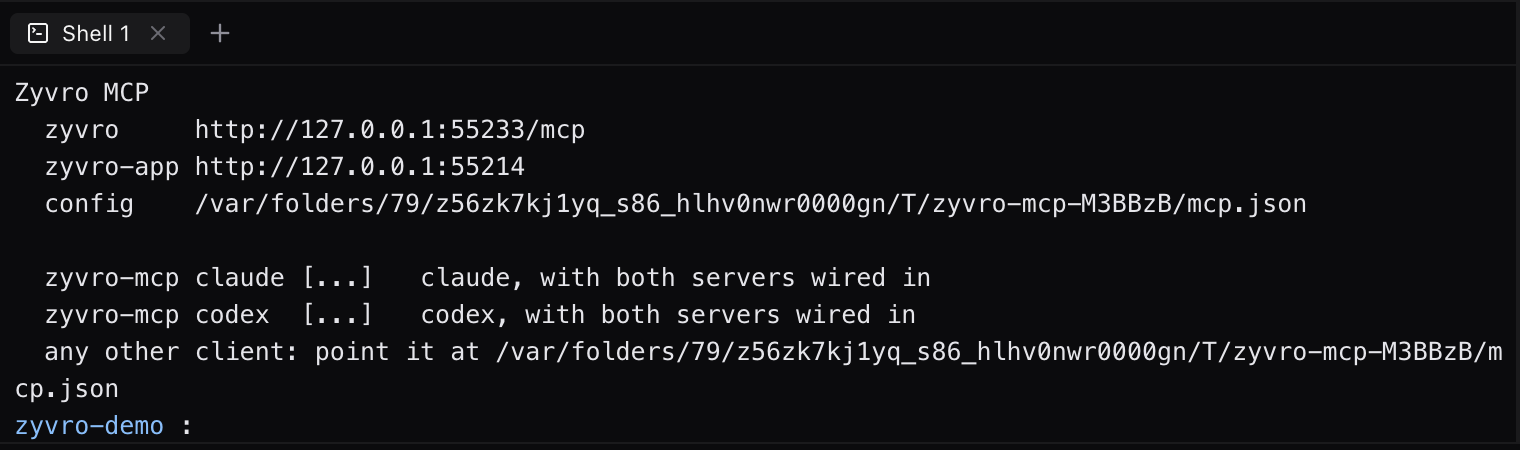
Every shell hands over the project.
Open a terminal and it already knows where this project's engine listens and what opens it: the addresses, the tokens, a ready-made mcp.json for any client, and a zyvro-mcp command that starts claude or codex already wired in. The port and the token change at every start — nobody should have to go looking for them.
The browser
It has its own. Yours keeps its tabs.
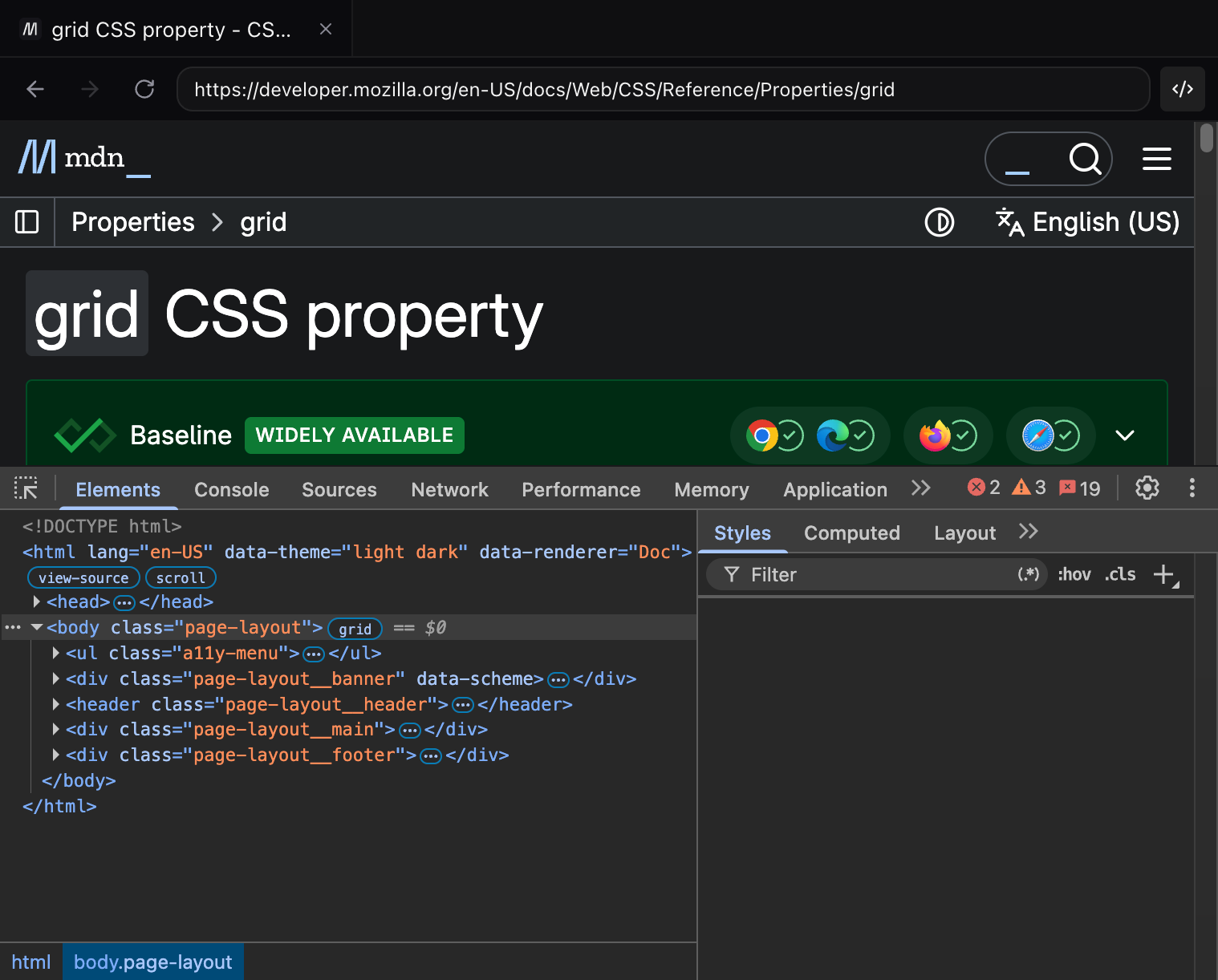
A page inside the IDE, in a session of its own. An agent opens it, reads what is on it, clicks, types, waits for a text to appear and photographs it — without touching the browser where you are signed in to everything. Right-click and Chromium's own devtools open under the page: Elements, Console, Network, Application. It is Chromium, because the app is.
Under the page
Chromium's own devtools, docked.
Right-click, Inspect, and the real front-end opens under the page — Elements on the live DOM, Console, Network, Application with its cookies and its storage. Not an imitation and not a second window to lose behind the others: it is the inspector the app already carries, drawn in the panel, next to the code that produced the page.
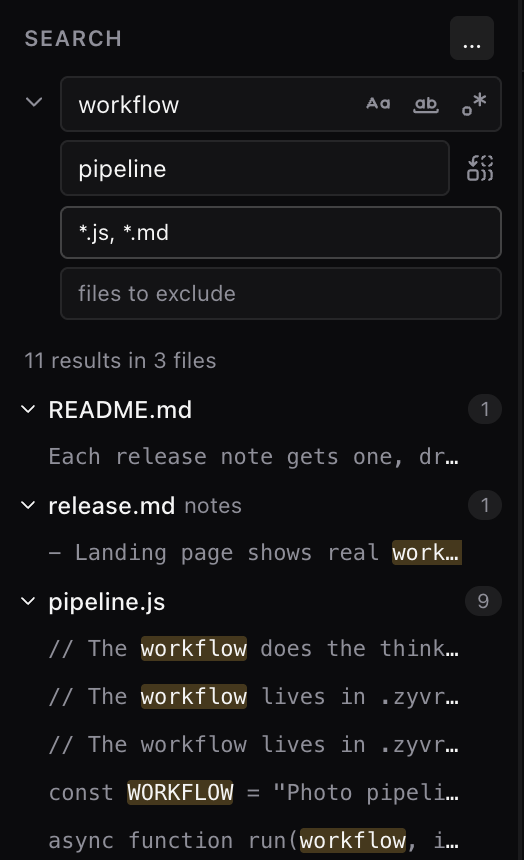
Search and replace
Across the project, or inside one file.
⇧⌘F searches every file in the folder — plain text, whole word, or a regular expression with $1 in the replacement — and you narrow it with the usual globs. Replace one occurrence, or all of them in one press: the button says how many and in how many files before you touch it. ⌘F stays in the file you are reading, in the editor's own bar. What gets replaced is what you were shown: each passage is checked against the file again, and one that moved since the search is skipped rather than overwritten.
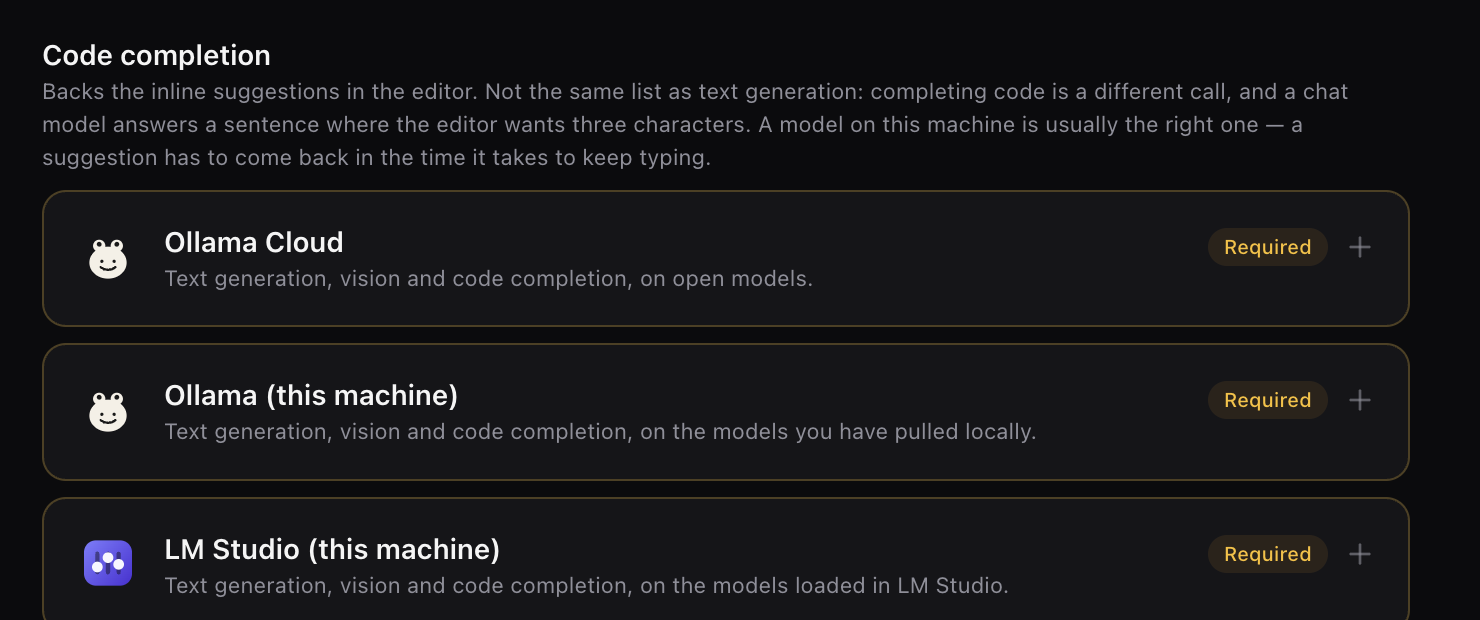
Inline completion
Grey text, from a model you chose.
Ghost text in the editor, from a provider you picked for that job — and it is a list of its own, because the models that fill in the middle of a file are not the ones that chat. It waits for a pause before asking and drops the request the moment you type again, so a suggestion that arrived late never lands on a cursor that moved. Off until you turn it on: every pause spends an account.
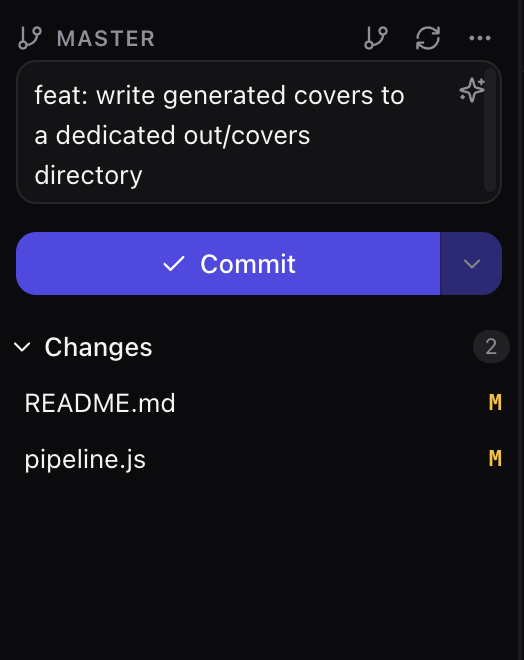
Source control
Git, beside the canvas.
Pull, stage, commit, push, branch, stash, tag, and a side-by-side diff on any changed file. The commit message writes itself when you want it to: the claude or codex CLI already signed in on this machine reads what is staged and proposes one line, which you edit before it goes anywhere — no key, no other bill. Conflicts get their own group at the top, because they are the only thing you cannot clear by clicking a plus. It drives the git on your machine rather than a reimplementation of it, so this panel and a terminal in the same folder cannot disagree.
Screenshots
Show someone what you are looking at.
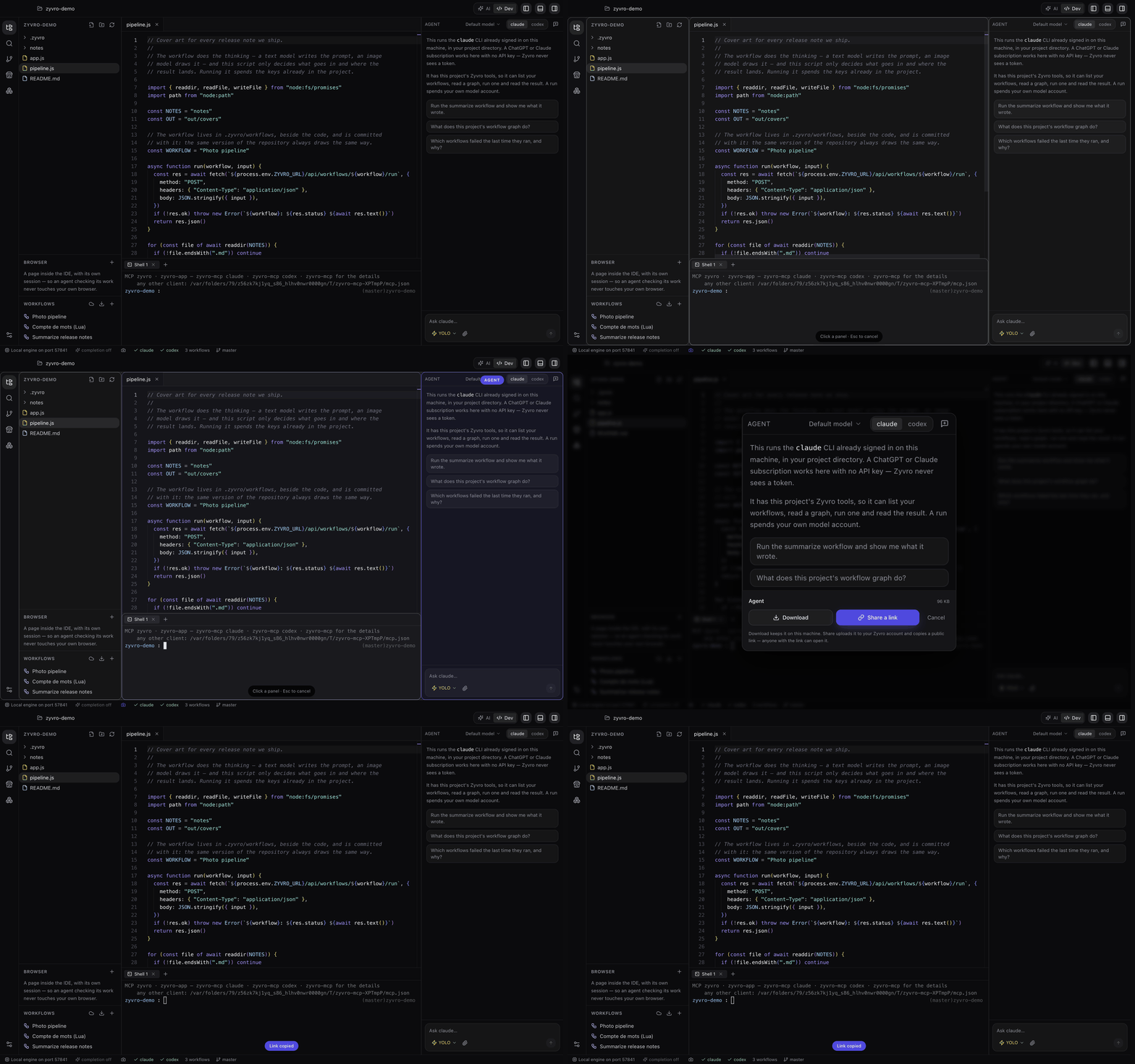
Click the camera, then the panel you mean. The app knows where its own panels are, so the image stops on their edges instead of a rectangle you dragged by hand — and the selection frame disappears before the shot, so it is not in the picture. Then it asks what to do with it: Download keeps it on this machine, Share uploads it to your Zyvro account and copies a public link. That is the whole gesture behind “look at this”, whether it is the thing you just built or the error you cannot explain.
The store
Start from one that already ran.
Workflows other people published, each shown as what went in and what came out — because a name and a description do not tell you whether it does what you want. Installing pulls the node packs it needs. They run on your machine, in the sandbox, and you can read the source before installing anything.
Browse the store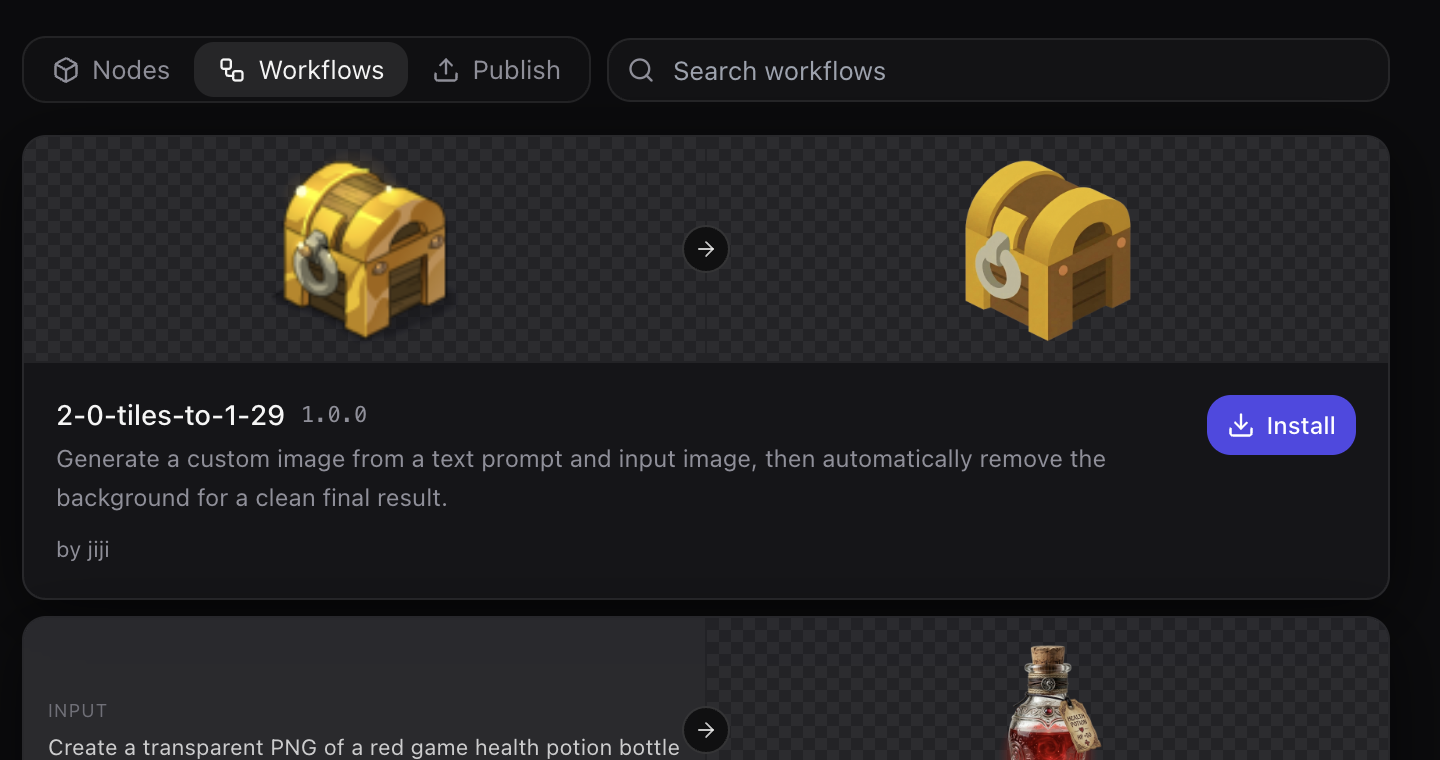
Made with Zyvro
Published workflows, each shown as what went in and what came out.
Every node
The whole palette, so you can see what a workflow can be made of.